
Questions? Answers.
Everything about the RollForMe addon and rollforme.com. Search, pick a topic, or start with the big four.
Getting started
Installing the addon and running your first raid.
Yes - the addon and the website are free. Every loot system, the meters, guild pages, rosters and leaderboards included.
The addon runs on:
 WoW Forever
 Classic Era
 Hardcore
 Season of Discovery
 Anniversary
 Mists of Pandaria Classic
The website reads raids from every one of them - each shown with its own game rules, items and Wowhead tooltips.
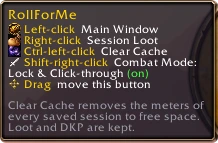
Full steps on the Download page. Once it's in, the dice on your minimap is your way in - hover it for the shortcuts:
No. Raiders with RollForMe get roll windows; everyone else just answers in raid chat:
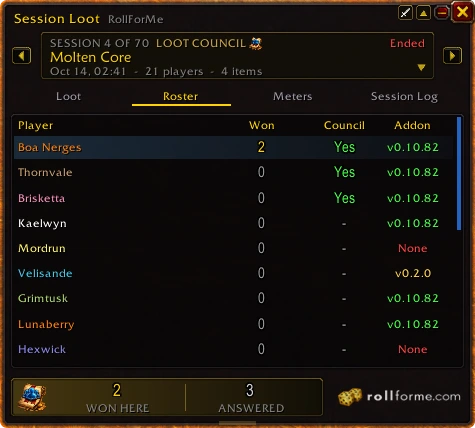
With people missing the addon, RollForMe rolls one item at a time and announces in chat, so nothing gets mixed up. In Soft Reserve, raiders just /roll when their reserved item comes up. The Roster tab shows who has it (and which version):
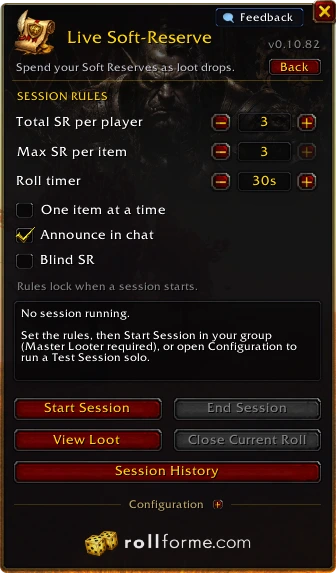
The raid leader or the Master Looter, with Master Loot on and you as the looter (RollForMe offers to switch it). DKP sessions also need a DKP officer of that ledger, or an officer in the group. Soft Reserve starts the moment the Master Looter (or the raid leader, who then takes Master Loot) pastes the sheet's addon import code.
A Combat Logs session tracks no loot, so anyone in a party or raid can start one.
Yes - pass Master Loot to them in game and RollForMe asks you “Hand them this session?” Say yes and the same session carries on from their addon: same balances, every item, still one raid on rollforme.com. It works in every loot system; in Loot Council the council goes with it and you keep a seat.
It happens between rolls (not while one is running or waiting to be handed out), and the new Loot Master needs RollForMe 0.11.21 or newer - for DKP, as an officer of the ledger. If they can't take over, or you say no, Master Loot comes back to you. Anything handed out by hand in between is still recorded.
Loot systems
+1 > MS > OS, DKP, Loot Council and Soft Reserve, and how each decides.




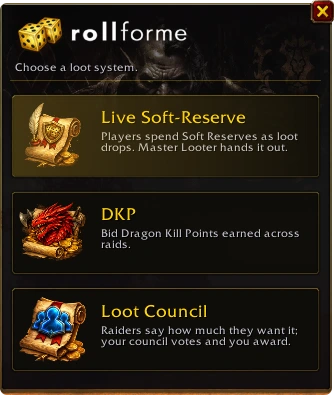
One addon runs all four - switch any week, your history stays together. It's the first thing /rfm asks:
Handing out loot another way? Combat Logs just records the raid.
+1 beats Main Spec, Main Spec beats Off Spec, and more +1s on an item beat fewer. Ties roll off automatically - nobody needs to /roll. The leader sets how many +1s everyone gets and how many can go on one item.
By default you only lose your +1s when you win: everyone else who put +1s on the item gets them back, and so does everyone if the roll is cancelled. The leader can switch that off - then a +1 is spent win or lose.
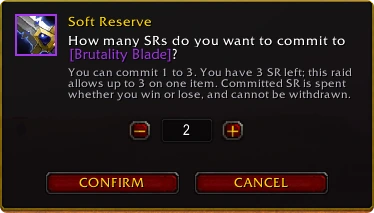
Before the raid, players reserve items on a soft-reserve sheet here - only what their class can use. On the night, the Loot Master pastes the sheet's addon import code into RollForMe (the Soft Reserve card) and the session starts; their addon sends the sheet to the whole raid, so raiders paste nothing.
When a reserved item drops, a raid warning names who reserved it and they /roll - one roll per SR they put on it, the best one counts. A 5…1 countdown and the winner go to raid chat, ties roll again. Nobody reserved it? A free roll for the whole raid. Hard-reserved items go to the Loot Master. Step by step, with screenshots.
On Make a sheet: the game version, faction and raid, a title, how many SR each player gets and how many can go on one item, and whether it's blind (players see how many reserved, not who or what). No account needed - your browser remembers you; sign in to keep it everywhere.
You're its loot master. Give the sheet's loot master key to whoever else runs the loot. Loot masters can change the rules, edit or delete anyone's reserve, hard-reserve items - one at a time, or in one click: All BoEs, All mounts, All profession items or All crafting materials - and Lock the sheet when it's time to pull (reserves are frozen for everyone). Only the loot master copies the addon import code. Delete a sheet from “Sheets you run” on your profile.
Open the sheet's link and click Click here to Soft Reserve: your character (as it's spelt in game), class, spec, an optional note, then your items - only what your class can use. Change or Take back any time until the sheet is locked, and Create another reserve for an alt or a friend. If the loot master posted the sheet to Discord, reserve right there instead: its Soft Reserve button opens a form only you see - the post shows that you reserved, never what.
RollForMe matches names whatever the case, accents or realm, and links a close misspelling of the same class by itself. Anything left shows greyed out on Session Loot's roster: the Loot Master clicks Link and picks the raider - or the raider types sr Theirname in raid chat. Links last the whole session.
Raiders bid in the roll window (or in chat). Everyone sees the top bid; late bids can extend the timer so nobody snipes. The highest bid wins and pays it from their balance.
Officers keep the ledger: award the whole raid (boss kills, attendance), adjust players with a reason, and run decay. Every change is on record.
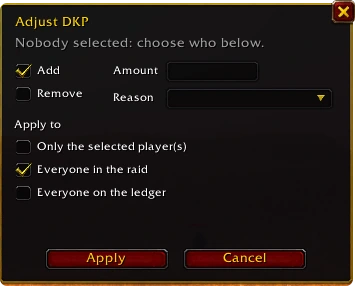
Yes - a guild that runs DKP gets a Ledger tab on its guild page: every raider's balance, the ledger's rules and officers, and each raider's latest changes (who gave or took what, and why).
It's read-only. DKP is awarded, spent, decayed and adjusted in game by the ledger's officers - every export of a DKP session brings the ledger to the site as it stands then. Raids exported with an older addon show what they recorded: balances and the items bought.
Yes, with addon 0.12.2 or newer. The guild's Guild Master or an officer clicks Copy addon code on the Ledger tab. In game, open the DKP Ledger window's ledger dropdown, pick + Import ledger... and paste it - the ledger opens, ready to go. Handy on a new PC, after a reinstall, or when a new officer takes over.
It always becomes a new ledger, with every raider's balance, its settings and officers - your other ledgers aren't touched (one with the same name stays, and the import is named “(imported)”). Its history starts at the import: the site keeps balances and their latest changes, not every entry.
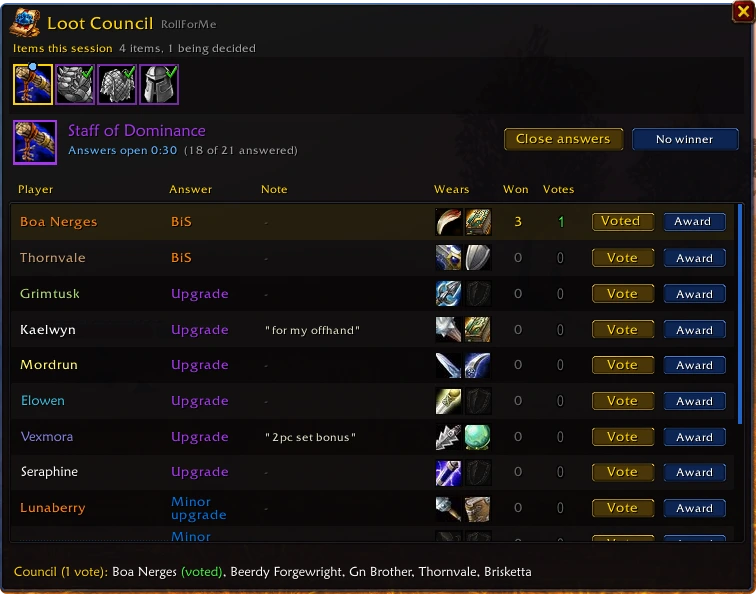
Raiders pick an answer and can add a note. The council sees every answer, note, what each raider wears and has already won - then votes (optionally anonymously). The Loot Master awards the item.
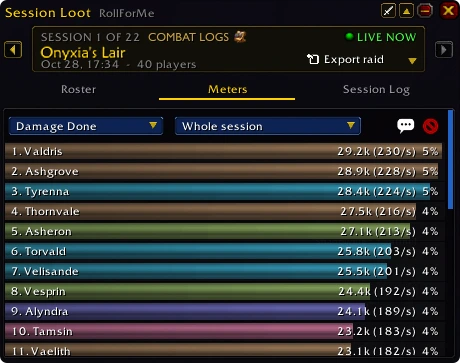
A session that records the raid and tracks no loot - for raids that hand loot out another way: Group Loot, Personal Loot, your own sheet or another addon. Pick Combat Logs under Logs only in /rfm. It records the meters, boss pulls, kills and wipes, and who was there, and uploads to rollforme.com like any session. See how it works.
No. It never rolls or announces an item, never changes your loot method, and leaves WoW's own Need / Greed rolls alone. Raids recorded this way show no loot on rollforme.com.
Anyone in a party or raid - no lead or Master Loot needed. Any number of you can log the same night: rollforme.com keeps it one raid, never five. If your Master Looter starts a loot session while you log, RollForMe asks you once whether to stop logging and join it.
Yes - the Master Looter or group leader clicks Add loot system and picks +1 > MS > OS, DKP, Loot Council or Soft Reserve. The same session goes on as that system's: one raid on rollforme.com, logs from the first pull, loot from then on. If someone else already runs a loot session for your group, the leader can take it over instead - they're asked first.
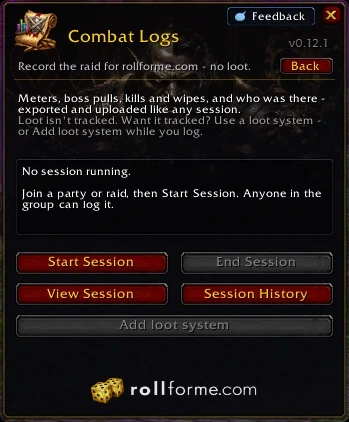
The addon
Meters, history, combat mode and settings in game.
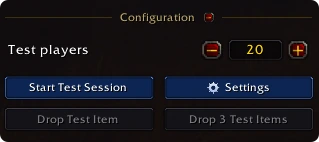
Yes. Open Configuration at the bottom of the main window, choose how many test players you want, and start a Test Session on your own. Drop a test item (or three) to see every window as your raid would. For Soft Reserve, paste a sheet's code on your own and start its test session - test players roll on your sheet's reserves.
Yes - the Meters tab in Session Loot: damage, healing, damage taken, deaths, interrupts and more, for the whole session or one fight. They're saved with the session, so they come to rollforme.com with your raid.
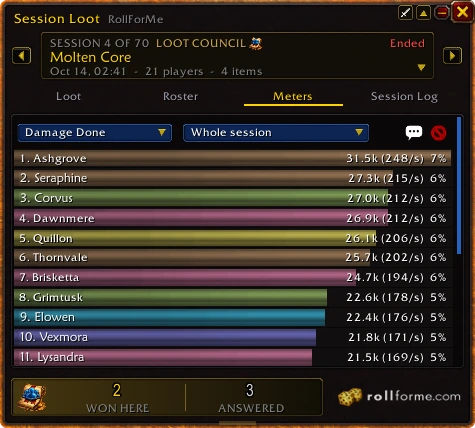
Click the sword button on Session Loot and the window locks in place and lets clicks pass through - keep your meters up mid-fight without them getting in the way. To turn it off, hover the window and click Disable Combat Mode, or type /rfm combat mode. The buttons next to the sword collapse the window or set how see-through it is.

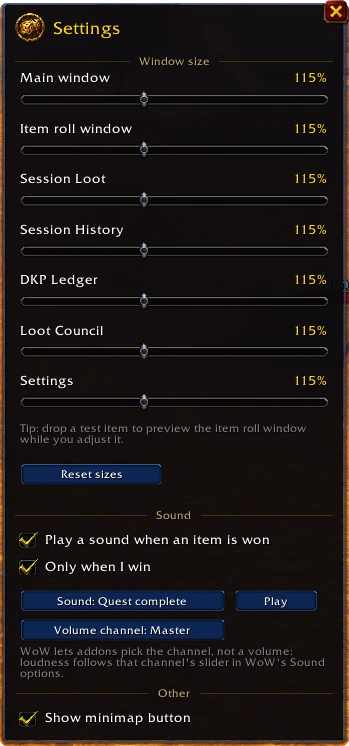
In Settings: a size for every window, a sound when an item is won (just for you, or for anyone), which sound and volume channel, and whether to show the minimap button.
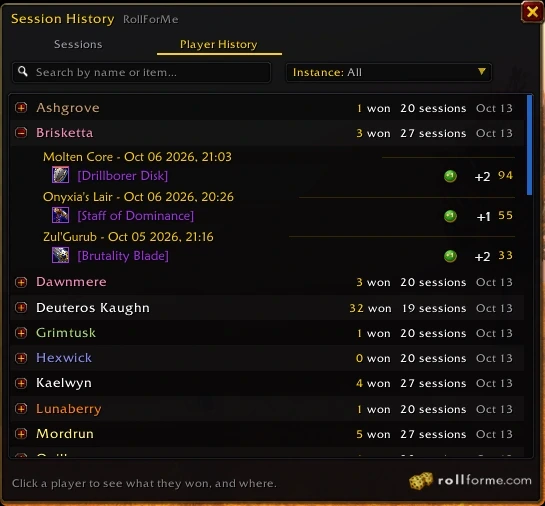
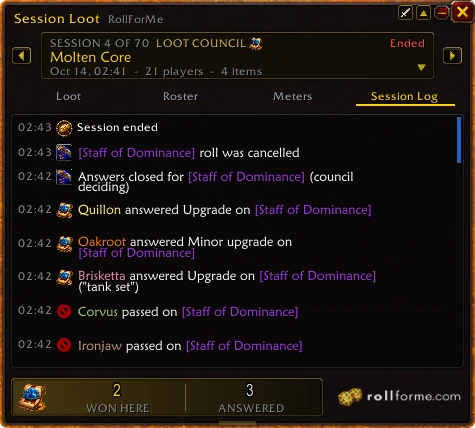
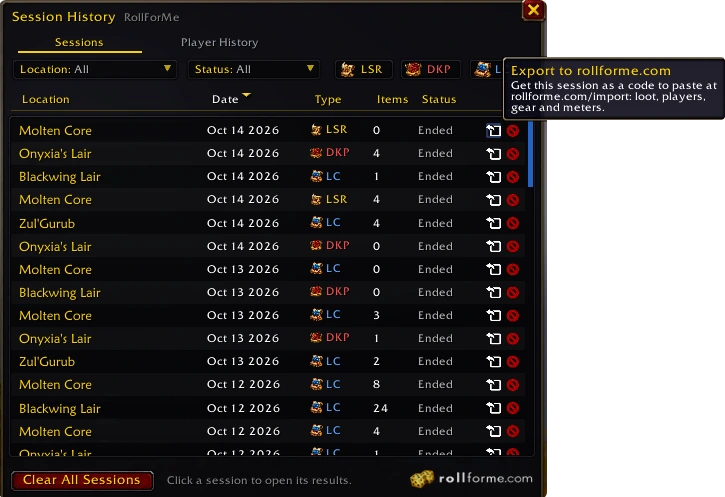
Session History keeps every session; its Player History tab lists every raider with what they won, where and how. Inside a session, the Session Log has every answer, bid, roll and award, minute by minute.
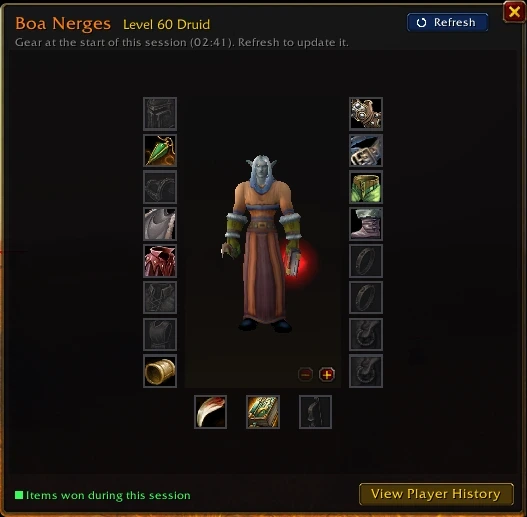
Yes - open a raider from the roster to see their gear at the start of the session, on their character, with what they won this session highlighted. The council also sees it on every answer.
The website
Getting raids onto rollforme.com, and who sees them.
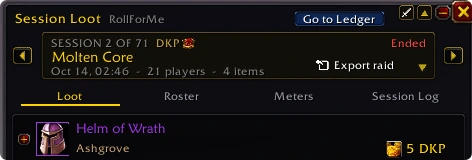
Open the raid in the addon's Session Loot window and click Export raid - or click the export arrow next to any session in Session History. The code comes up already selected: press Ctrl+C, then paste it on the Import page.
When you import, you choose: a guild run or a PUG. A guild run goes on your guild's page and counts for its leaderboards. A PUG run gets no guild page and isn't ranked as a guild - but it still counts for everyone in it: their raider pages, parses and player leaderboards.
Everyone - guild pages, raids, raider profiles, public rosters and leaderboards are public, so you can share any page as a link. Only import raids your raid is happy to have published.
It's merged into one raid - nothing is counted twice.
It was recorded in Combat Logs mode, which records the raid but not the loot. Everything else counts as usual: parses, boss kills, rates and attendance. If someone else in that raid uploaded a loot system's copy of the same night, the raid shows that copy's loot instead.
Yes - click Download raids on a guild's Raids tab (every raid it lists, with your filters), Download raid on a raid's page, or Download ledger on a DKP guild's Ledger tab. On a phone it's the little green sheet icon.
Raids come as a ZIP of four CSV files - loot, responses, attendance and fights - that open in Excel, Google Sheets or Numbers. Times are in UTC, and the separator follows your browser's language (a semicolon where a comma is the decimal mark).
A guild's own people - its Guild Master, officers and members - also get Export CSV on its Attendance tab: every raider's class, spec, role, race, level, Personal Parse, attendance, items won, DKP, average item level and the item in each slot. A gear plan exports the same way, from its menu.
Use the search box at the top (press / anywhere). For filters - game version, faction, realm or game mode, class, role - open Advanced search.
Parses, rates & stats
What the numbers mean and how they're worked out.
Your Personal Parse answers one question: how well do you play, night after night?
Other parsing websites rank you on your best kill of each boss. RollForMe uses every kill and takes the middle one, so a single lucky log can't carry you, and a single unlucky night can't sink you.
1Every boss kill gets a score from 1 to 100
Your damage per second (healing per second for healers, threat per second for tanks) is lined up against every comparable kill of that boss. Your score is the share of those kills you beat. The best one ever recorded is 100.
2Only compared with kills that are truly comparable
3Built up from your kills to one number
The median step is what makes it fair: it's the kill in the middle when all of yours are lined up, so the odd outlier at either end barely matters.
4One unlucky night doesn't sink you
Four kills of the same boss. On kill 3 you died early to a mechanic. An average drags you down to 76; the median keeps you at 89 - which is how you actually play.
5One lucky log doesn't carry you either
Ranked on their best kill, Raider A (97) beats Raider B (86). But B is the better player on any given night - and RollForMe ranks them that way: B 84, A 51.
6RollForMe next to other parsing websites
On threat per second. The game's own meter doesn't record threat, so the RollForMe addon samples it during every fight. For older raids without those samples, a tank's damage per second stands in for it.
Success rate: boss kills out of every boss attempt. High? In, kill, loot, leave. Low? Lots of "one more pull".
Mortality rate: in each boss fight, the share of the raid that died (15 of 20 alive = 25%), averaged over every boss fight. High? Lots of floor time. Low? Everyone walks out alive.
Guilds are ranked on success rate, mortality rate, Speed Parse or kill time - your pick - for every version or one. Rates need 5 boss fights to be ranked. Speed Parse is how fast a guild usually kills: every boss kill is timed pull to kill and gets a Kill Parse (0-100) against other guilds' kill times on that same boss (same game version and raid size), so roleplay and downtime count against no one. Every parse - Speed Parse, Kill Parse and a raider's - shows once there's something to compare with: at least 2 kills of that boss, from at least 2 guilds. Real guilds are only ever compared with real guilds, and the example guilds only with each other. Kill time ranks each guild's fastest kill of the boss you choose. Players have their own boards too - damage, healing and tanking (threat), by class and spec, plus the latest records broken. Each guild shows the icon of the loot system it mostly raids with, and you can filter guilds by it (+1 > MS > OS, DKP, Loot Council or Soft Reserve). See the leaderboards.
From the gear they wore in their last raid, their race and class, worked out by their version's rules (ratings on Anniversary's Burning Crusade, mastery in Mists of Pandaria, and so on). Their enchants, gems, set bonuses and the talents that add stats count; buffs don't (they come and go). The 3D model wears the same gear.
They follow each version's rules, as Wowhead's planner does, and count what the plan holds: its items, enchants, gems and socket bonuses (a meta gem only when its colours are met), random enchantments, reforging and item upgrades, runes, set bonuses, the talents that add stats, and the buffs and consumables you pick - at the plan's level, race and class. Not counted: procs and on-use effects, shapeshift forms, and Mists of Pandaria's talents, glyphs and spec passives.
Raid rosters
Building, planning, sharing and posting rosters.
Open the Roster builder, pick the guild (or a PUG) and a size (5, 10, 20, 25 or 40), then drag recent raiders into groups - or click them, or hit Auto-fill. Rename, empty or remove groups as you like, and publish.
No. Rosters you make are remembered on your browser (on your profile, and on a guild's Rosters & Sign-ups tab). Sign in (Discord or Google) to keep them on every device.
Yes - click any empty slot in the roster builder and plan a character: name, class, race, spec and role (only what the game allows in your guild's version and faction; a PUG roster picks its faction first). Once a raid log with that exact name is uploaded, they're verified as that raider: their real class, parses and profile, and they show on Attendance.
A public roster: anyone can see it. A private one: only the guild - its members and recent raiders, signed in - and whoever can edit it. Its creator and the guild's officers can change it, and so can anyone they give its key to (roster keys). A new key takes the old one's access away. Everyone who can see a roster can comment on it, under its groups (comments and tags).
Yes - Post as sign-up on the roster: public or private like the roster (you're asked first; a PUG is always public), with the groups already filled. Planned characters come along - the player who signs up with that exact name takes the slot.
Yes, when the sign-up's loot system is Soft Reserve: its organisers click Add SR Sheet to this sign-up (the sheet opens ready for that raid), or a sheet's loot master adds an existing sign-up from the sheet. The sheet then sits right on the sign-up's page, and raiders sign up and reserve in one place.
Yes - Find a dungeon, next to Find a raid, lists dungeon runs looking for players, and Build a dungeon run makes one. It works like a raid sign-up - public or private, guild or PUG, a loot system if you want one, Discord, groups you fill by dragging - with the dungeon, as many groups as you add, and its difficulty. Each group shows what it still needs: 1 tank, 1 healer, 3 damage. Players can add their level when they sign up.
The difficulties are the ones each game version has: Normal on WoW Forever, Classic Era, Hardcore and Season of Discovery; Normal or Heroic for The Burning Crusade's dungeons on Anniversary; Normal, Heroic or Challenge Mode (aim for a Bronze, Silver or Gold medal) on Mists of Pandaria. None of them has Mythic or keystones. Older expansions' dungeons are listed under Classic Dungeons.
Yes - pick Recurring under Date when you post it (the days of the week, a time, from when, and an end date or until you stop it), or Multiple dates to pick them one by one. It stays one sign-up: everyone signed up and your groups carry over from one date to the next, and the page shows the next date and the ones after it. Can't make it? Click Absent (with a reason, if you like): you're taken out of the groups and listed as absent until you click I'm back.
Yes, when the guild has its Discord linked (its Discord tab). On the sign-up's page its organisers click Post to Discord and pick a channel: the RollForMe bot posts the raid - when (in each reader's own time), what, and who's signed up, group by group - with Sign up and Absent buttons. Sign up opens a short form (character, class, role, a note - filled in with your main when your Discord is on your RollForMe account). Absent takes you out of the groups (with a reason, if you like) until you click I'm back. It's on the site at once, and the post keeps up with sign-ups made on the site. The bot needs Send Messages and Embed Links in that channel - if it's missing one, the site says which.
Strategies
Boss plans drawn on the map, and talking them over.
A boss's plan on its map: drop the raid markers, roles, classes and the boss where they go, draw arrows, areas and notes, phase by phase - and talk it over in its comments (type @ to tag a friend, a raider, @Officers or @GuildMaster - they're notified). Create a strategy: one of your own (My Strategies) or for your guild - for any game version's raids (a guild's own to start with). Yours are on your profile, with those you made for guilds.
Yes. On the strategy, its editors press Share to Discord, pick a server and channel (and, for a plan of several phases, which phase to show) - the RollForMe bot posts the map as a large picture with an Open the plan button.
The post keeps up with the plan: a few seconds after editing stops the picture is updated, and while people keep editing, about once a minute. Stop updating it leaves the post as it is. The bot needs Attach Files in that channel - the picker says if it's missing.
Pasting a public strategy's link shows its map too, as it was when pasted. A private strategy's link shows nothing of it.
Yes. Scroll over the map (or pinch, or the + / - buttons) to zoom in, and drag to move around. The arrows in the map's top corner turn it 90 degrees left or right per click - markers, icons and text stay upright. Zoom and rotation are just your view: everyone else sees the map their own way.
Your own (My Strategies) are private to you - and whoever you give its key - until you click Make public. Post to a guild puts a copy in a guild you make strategies for. A guild's strategy is private to the guild's people - its recent raiders (signed in, tracking their character), Guild Master, officers and key holders - on its Strategies tab, filed by game version, until it's made public too. Public ones are on Strategies for everyone.
Whoever made it, the guild's Guild Master, officers and anyone given its key can change it - all at once, live: you see each other's changes the moment they're made, drawings as they're being drawn (with who's drawing), the faces of who else is editing next to the map, and, hovering anything on the map, who put it there. Undo only undoes your own changes. Everyone who can see it can comment. Running a guild (Guild Master, officer or key holder)? Save to guild on someone else's or another guild's strategy copies it into your guild's Strategies, private to your guild, to change as you like.
Gear Planning
Planning a character's gear, and everyone's gear plans.
A planner for a character's gear, on their page: click Gear Planner next to the Character, Stats and Talents tabs. It opens with what they wear now, as Gear Plan 1, and the 3D model wears the plan as you change it. It saves as you go.
Click a slot to pick from every item that slot can take on that game version - filter by item level, required level, quality, where it comes from and phase (the current phase to start with), sort by a stat, and see what drops it. Each item takes what its version allows: enchants, gems and socket bonuses, random enchantments (“of the Bear”), reforging and tinkers on Mists of Pandaria, runes on Season of Discovery. The Talents tab plans talents, Buffs adds raid buffs and consumables, and Stats shows the totals - each with how much it changes from the gear worn now.
Up to 10 per character, as tabs: double-click a tab to rename it, + copies the plan you're on. The plan's menu has the rest - share it, copy its Wowhead link, import one, export it as a CSV, make a new plan from the gear worn now or an empty one, or delete it. Only you see your plans on a character's page; your plans for every character are on your profile.
Yes - in the plan's menu, Import from Wowhead: paste a Wowhead gear planner link and its items, enchants, gems and talents fill the plan (you're asked first if it's for another class or game version). Copy Wowhead link goes the other way, to open your plan on Wowhead.
Yes - Plan Your Gear (on the home page and your profile) asks you to choose an existing character - one of yours, any character you search for, or one you looked at lately - or make a New plan: a game version, class, race and level. A new plan with no character is a gear draft. Link to a character moves a draft onto one of your characters of the same class and game version; Copy as gear draft goes the other way, and Import from my drafts copies a draft into a character's plan.
No. Signed out, your plans are kept on your browser, and move to your account when you sign in. Plans on a browser nobody signed in to are deleted after 90 days unopened.
Gear Planning (in Features) lists everyone's gear plans - filter by game version, class, spec, role, race, level and phase, and sort by newest, most saved or highest item level. Plans are anonymous: no player, character or guild is shown. A plan is listed once it has at least 5 items and differs from the character's gear, and copies aren't listed twice. Open one to see it all, and Save to my gear plans to keep a copy - on one of your characters, or as a gear draft.
Crafting Orders
Asking crafters for items, and crafting for others.
Ask for crafted items and have someone craft them. A guild's orders are on its Crafting Hall tab; public ones on Crafting Orders (in Features), for players on the same realm and faction - on WoW Forever, the same ruleset. One order can hold several items, up to 20, each split between crafters. Add a tip if you like.
Search an item by its recipe (or type one in), choose how many, whom to mail it to in game, and whether the order is for the guild or public.
Open the order and use Have the recipe? Craft it - take all of an item or part of it. Then mark your steps: Started crafting, then sent. The requester marks each part received, or Mark as complete for the whole order. Changed your mind? Abandon order. There's no recipe check: whoever takes it should have the recipe.
Yes - Can you supply mats? Contribute on the order: tick the materials, how many, and whether they go to the requester or a crafter. Mark them gathering, then sent; whoever gets them marks them received. With nobody supplying, the crafter brings the materials or gets them from the requester.
On the Crafting Hall, tick your professions under Notify me about new orders: new orders for them notify you. The Guild Master or an officer can also post new orders to a Discord channel. Making an order, you can tag up to 10 guildmates: they're told directly and can answer “Can't craft it”. Every order has its own chat.
Yes, signed in: pick No guild (or have none), then the game version, region, realm (or ruleset) and faction - the order is public, on Crafting Orders. Signed out, fill the form and sign in to post it: nothing you typed is lost. When you later join a guild on that realm and faction, your open orders move to its Crafting Hall.
Barrens Chat
Live chats about anything WoW, whispers, and staying safe.
A live chat for the whole site, styled like the game's own. Barrens Chat opens on General: every chat going on right now, one under the next - scroll down for more. Messages appear the moment they're written, no reloading. Search chats at the top, or filter them by Chat status (Ongoing or Closed) and Topic: PvP, RP, PvE, Loot Systems, Question, Self-Promotion, Barrens Chatting or Other.
Anyone can read every chat. To write, start a chat, whisper or ignore someone, sign in with Discord or Google.
Click New chat, give it a title and pick a topic (Other lets you type your own). To join a chat, click it and type - or click a line to answer it (your reply shows "@" its writer). Either way, the chat opens as a tab next to General, numbered in the order you opened it, the height of your screen.
You can start up to 3 chats a day, write a message every 2 seconds, and each message is up to 255 characters, as in game.
Click a player's name in any chat: the typing box turns purple - Tell Name: - and what you send opens a private tab between the two of you. Only you two can read it. Either of you can close it; if the other one whispers again, it opens again for you.
A tab glows softly when its chat has new messages you haven't seen, and pulses fully - as in game - when someone replies to you or whispers you. Whispers also chime; the speaker button at the top mutes chat sounds. If you aren't on the page, a reply or a whisper also comes as a notification on your profile - unless you've already seen it.
Right-click a tab (hold it, on a phone) and choose Close tab. If you started that chat, you're asked first: closing it closes the chat for everyone in it - or you can hand it over instead, and whoever joined it first of those still in it becomes its owner.
A closed chat is never deleted: it becomes read-only and moves to Closed chats. Everyone who still has it open sees "Closed by owner". A chat with no messages for 7 days closes by itself; one quiet for 48 hours sinks below the busier ones.
Right-click a message (hold it, on a phone) for Report or Ignore. A whole chat is reported with the Report flag in its top right corner. Ignoring someone hides their messages and chats from you everywhere in Barrens Chat, and they can't whisper you. Ignored (N) at the top lists who you ignore - unignore them there.
Yes. A Wowhead item link shows as the item, in its quality's colour, with its tooltip - as in game. Any other link is shown as it is.
Every link that leads outside RollForMe warns you first, and opens only if you click Open anyway. Players write the links, not RollForMe - we don't check where they go, so open them at your own risk. Never give your password or personal details to anyone in a chat: RollForMe never asks for them. See our Terms of Use.
Access & keys
Who can change a guild, its rosters and sign-ups - and how to get access.
Anyone can look - guild pages, raids, public rosters and sign-ups. Changing things is for the people a guild trusts:
- The Guild Master - one per guild: whoever made it on the site or uploaded its first raid, until they pass it on (see below).
- Officers - accounts the Guild Master granted access to (they ask with Request officer access on the guild's page).
- Guild key holders - whoever typed in the guild's key, on their account or their browser.
All three can change the guild's name, description (the banner at the top of its Overview - edit it right there) and tabard, and every roster and raid sign-up made for it. Only the Guild Master answers officer requests, takes access away, makes a new guild key and passes Guild Master on. A single roster or sign-up can also be opened with its own key.
Three ways, signed in: click Join guild on its page and its Guild Master or an officer accepts (on the Permissions tab); open an invite link they sent you; or they add you by name. Members get a Member badge, the guild's Notes tab, and can ask for officer access. (Tracking a guild is only following it.) Guilds made on the site take members - not example or PUG guilds.
To leave, click Leave next to your badge on the guild's page, or the x on its card on your profile. A Guild Master passes the guild on first.
A shared notepad for the guild's members, officers and Guild Master - pages down the side, with headings, colours, lists, checklists and tables. It saves as you type, shows who last edited each page, and others' changes appear by themselves. If someone saves a page while you're writing it, you choose: their version, or keep yours as a new page - nothing is overwritten. Whoever made a page, an officer or the Guild Master can delete it.
Yes, by its Guild Master: Edit guild → Disband the guild, typing its name to confirm. It takes effect after 3 days - until then the Guild Master can cancel it. Nothing is deleted: its raids, raiders, rosters, sign-ups and strategies stay on its page, marked Disbanded. It leaves the leaderboards, takes nothing new, and its name is free for a new guild. The Guild Master can then leave it too.
Sign in (Discord or Google), open your guild's page and click Request officer access - add a note if you like. (Or open the request link the Guild Master or an officer sent you - it does the same; it asks you to sign in first if you aren't.) The Guild Master sees it on the guild's Permissions tab - and right under the guild in Your guilds on their profile - and grants or denies it. Granted, it's on your account for good - no key to type, on any device - until the Guild Master takes it away. Your waiting requests are on your profile.
An 8-character key (letters and digits, capitals count) that opens the whole guild. The Guild Master - and anyone who holds it - sees it on the guild's Overview tab, with a link that uses it. Type it in on the guild's page (“Guild officer? Type the guild key”) or open its link: it's remembered on your account if you're signed in, else on that browser. It's for people without an account, or a quick handover. It renews by itself every 30 days, and the Guild Master can make a new one any time: a new key shuts out everyone who used the old one (officers the Guild Master granted stay).
Every roster and raid sign-up has its own 8-character key, shared by whoever made it (Share editing / Share organising). It opens just that one: a roster to edit, a sign-up to fill the groups and change its details and status. Deleting it, making it public or private, and a new key stay with its maker and the guild's officers.
A guild's raiders - signed in and tracking one of their characters among its recent raiders - plus its Guild Master, officers and key holders. Anyone can make a PUG roster or a PUG sign-up. To try the roster builder before you have a guild, one example guild is open to you - those practice rosters stay private.
The guild key changed - it renews every 30 days (ask for the new one) - the Guild Master took your officer access away, or - with a key used signed out - your browser's cookies were cleared. Making a guild's rosters as one of its raiders also needs you still among its recent raiders. Sign in to keep keys you use on your account.
Every guild has one Guild Master. They become it by making the guild on the site, or by uploading its first raid. It changes hands three ways:
- Passed on - the Guild Master makes one of the guild's officers Guild Master, on the Permissions tab. They stay on as an officer.
- Claimed - if the Guild Master hasn't been on RollForMe for 30 days, an officer can claim it on the Permissions tab.
- Uploaded - if the Guild Master never uploaded a raid of the guild, the first person who does becomes Guild Master.
Every change is on the Permissions tab's history, and on your profile if it was you. Not signed in? The guild is yours on that browser only - sign in to keep it on your account.
Signed in, use the Report flag on the guild's page (Claim guild, Inappropriate name or Other), on a character's profile (Inappropriate name or Other) or on a comment (Harassment or abuse, Spam or Other - it shows when you point at the comment). Tell us what's wrong and leave your email - only we see it, to answer you.
Use the Report flag on the guild's page and pick Claim guild (signed in) - or reach out on our Discord (or email contact@rollforme.com). We settle it on a short Discord call: share your screen with your guild window open in game, showing the guild's name and your rank, and type a code we give you into guild chat. That's it - we hand the guild over.
WoW Forever
RollForMe on Blizzard's new Classic.
WoW ForeverYes - it's supported from day one. WoW Forever launched on November 4, 2026.
WoW Forever has no realms - characters have a first and a last name, like Boa Nerges. Guilds there show their ruleset instead: Normal, PvP, RP, RP-PvP or Hardcore.
Yes. WoW Forever's new race shows as Windshaper Skyborne (Horde) and High Order Skyborne (Alliance) on armories, rosters and sign-ups. Both play Warrior, Hunter, Rogue and Druid; Windshapers also Shaman, the High Order also Mage.
Accounts & privacy
Signing in, tracking, cookies and your data.
No - everything works without an account. Signing in is optional, with Discord or Google; we see your name and picture, never your email or contacts. (On a guild's Discord tab, the RollForMe bot checks whether you're in that guild's server and which roles you have there - nothing else.)
Yes - one RollForMe account, either way in. On your profile, Sign-in methods shows which you have: Add Discord (or Add Google) adds the other to the account you're signed into - same guilds, characters, sign-ups and friends. Signed in with Google, a guild's Discord tab offers it too, as it needs your Discord. A Discord or Google account that already has its own RollForMe account can't be added to another (accounts aren't merged).
A window into the guild's Discord server, on its guild page: the channels its Guild Master or officers chose, live. Sign in with Discord and you see exactly the channels your Discord roles let you see there - and write in the ones you can write in. What you write goes to Discord under your Discord name and picture (with Discord's small APP tag, and - Discord's rule for such messages - your name there in white; here it keeps your role's colour). Edit or delete what you wrote here any time. Every message opens in Discord itself, and a blue count on the tab shows what you haven't read.
As in Discord: attach files and images (drop or paste them - 8 MB a message), send a GIF from the GIF picker, use the server's emojis, type @ to tag a member (they're pinged - @everyone, @here and roles never are), and hover a message to Reply. Reactions show with their counts; reacting itself happens on Discord (Discord lets a bot react only as itself), so a click on one opens the message there.
To set it up, the Guild Master or an officer opens the Discord tab, adds the RollForMe bot to the server (Discord asks for Manage Server there), links it and picks the channels and their order. Messages stay on Discord - RollForMe keeps only which server and channels, where each person stopped reading, and which messages were written on the site.
Signed in, add someone from your profile (find them by name) or with Add friend beside their name in any comments. They get a notification and accept or decline it on their profile. Your friends show with their main, and come first when you tag someone. Remove a friend any time - they aren't told.
When someone tags you in a comment, asks to be your friend or accepts your request, a red count shows on your profile button. They're listed at the top of your profile - click one to go to the comment (it's marked read), or Mark all as read.
They put your guilds and characters on your profile, one click away. On a character's page, Set as Main makes them your main (one per account, marked with a star) and Add as alt adds any other character you play. Change your main any time - from the character's page or the star on your profile.
Signing up for a raid, the name box lists your characters that can join it (same game version, realm or game mode, and faction) - your main first, filled in already. Pick one and click Sign up. Signed in with a guild tracked, the homepage welcomes you back and its My Guilds button opens your guilds.
Signed in, you earn them by using RollForMe - set a main, join a guild, post a sign-up, make a roster, plan a boss fight, add a friend, upload a raid, make a soft-reserve sheet - and by mastering the trivia. Each unlocks a look for your profile: a banner background, or an outline round your portrait that shows wherever your picture does. The crown on your profile banner lists them all; the pencils there change your looks.
Things you did before achievements existed count too. Guild achievements are coming: they need real raids from many guilds first.
A game in the homepage's welcome banner (signed in, tracking a guild, on a computer or tablet): a Warcraft III unit greets you - name it from two choices. Name all 75 without a mistake for Voice of Azeroth I: Journeyman, then again against the clock for Expert (under 8:00) and Artisan (under 4:30). Your fastest full run goes on the Trivia Leaderboards.
Email contact@rollforme.com - your account, or a character or guild that appears on the site.
Contact & help
Questions, bugs, ideas - we'd love to hear from you.
Just say hi - we read everything. Email contact@rollforme.com, ask on our Discord, or see the Contact page.
Yes - watch the 3-minute tour on the home page, and find walkthroughs and updates on our YouTube channel.
RollForMe is free to download and use. Re-uploading it, changing it or using its code or art elsewhere needs our written permission - see the addon license, and ask through the Contact page. Get it only from rollforme.com or its official CurseForge and Wago pages.
Tell us your game version, the addon version (type /rfm in game) and what happened - by email or on Discord. A screenshot helps.
Please do - many of RollForMe's features started as a raider's idea. Drop it on Discord or email us.
Credits
World of Warcraft art, icons, maps and portraits are Blizzard Entertainment's, shown through Wowhead and RaidPlan.io.
Strategies' role icons (tank, healer, melee, ranged): “Sword”, “Bow and arrow” and “Shield” by Freepik from flaticon.com, licensed under CC BY 3.0 - modified.
Strategies, rosters and every character's armory have comments. On a strategy or a roster, everyone who can see it can comment (signed out, with your character's name); on an armory, sign in to comment - anyone can read them.
Type @ to tag someone: your friends come first, then the guild's people and characters, then anyone on RollForMe by name - and on a guild's page @Officers and @GuildMaster. Whoever you tag gets a notification (a red count on their profile button) that takes them straight to your comment - as long as they can see that page. Tagging a character tells whoever has them as their main or an alt.
Delete your own comments any time (a roster's or strategy's owner can delete any on it). Something wrong? Signed in, use the Report flag on the comment.